LERIS PRC Online Registration: Create Your Account 2026
Disclaimer: This website is not affiliated with the Professional Regulation Commission (PRC) or the Philippine government. All information is sourced from official PRC channels and published for guidance only.
Last Updated: July 2026
Whether you are about to apply for your first board exam, need a PRC online account for renewal, or simply want to get set up before deadline season — this guide walks you through LERIS PRC online registration at online.prc.gov.ph: the full sign-up process, the profile completion that most people skip, and the fix for every registration error. If you already registered and just can’t get in, skip this page — the login and recovery guide is what you need. And if you’re wondering what LERIS even is before signing up, the complete portal overview answers that in two minutes.
What You Need Before You Register
Prepare these 5 things before opening the registration page. Having them ready prevents errors that take days to fix later.
1. A Personal, Permanent Email Address
Use a personal Gmail or Outlook address you will own forever — not a school email that expires at graduation or a company email you lose when you resign. Every OTP, confirmation, and PRC notice goes to this address for the rest of your career.
2. A Valid ID
Your name in LERIS must exactly match your valid ID — and ultimately your PSA Birth Certificate, which is PRC’s reference record. Accepted IDs: PSA Birth Certificate, passport, driver’s license, UMID, SSS/GSIS ID, PhilHealth ID, Voter’s ID, or an existing PRC ID.
3. A Digital 2×2 Photo
JPG format, under 2MB, plain white background, front-facing, decent attire with a collar. No filters, no eyeglasses, no accessories covering the face. (Phone photos in HEIC format must be converted to JPG first.)
4. Your Personal Information
Full name exactly as on your PSA record (including middle name and suffix), date of birth, permanent address, mother’s maiden name, citizenship, school, degree, and graduation date.
5. An Updated Browser
Latest Google Chrome or Microsoft Edge. Older browsers break the registration form — fields disappear or the submit button stops responding.
LERIS PRC Online Registration Steps (Create Your Account)
There is 1 way to register — through the official portal. No app, no walk-in account creation, no third-party sign-up.
Step 1: Go to online.prc.gov.ph
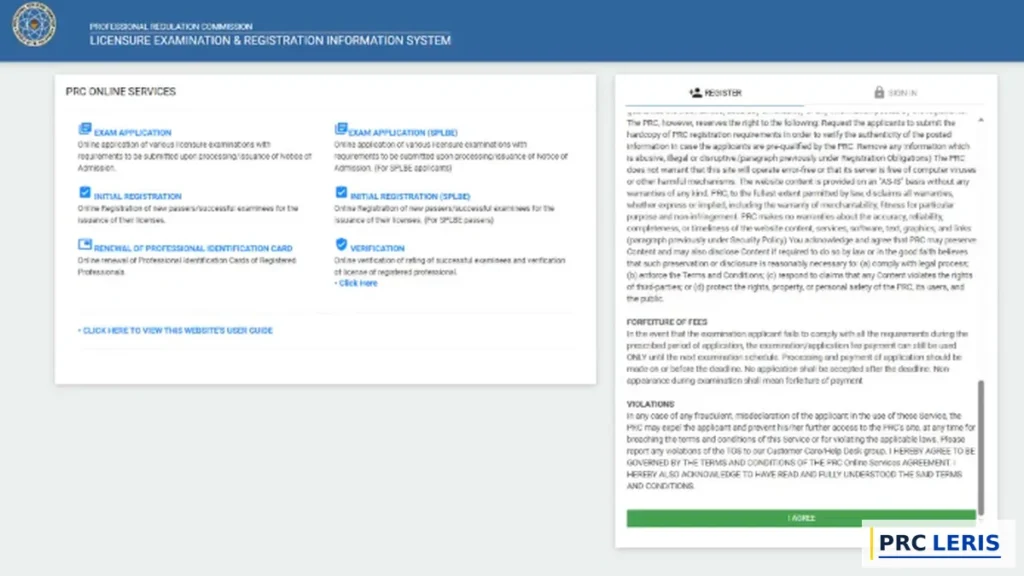
Type the URL directly into your browser. The homepage loads with a Terms and Conditions panel.
Step 2: Read and Accept the Terms and Conditions
Scroll to the bottom of the panel and click the green I AGREE button.
Don’t skip the terms — PRC’s rules on duplicate accounts, name accuracy, and photos are stated here, and violations cause application problems later.
Step 3: Fill In the Registration Form
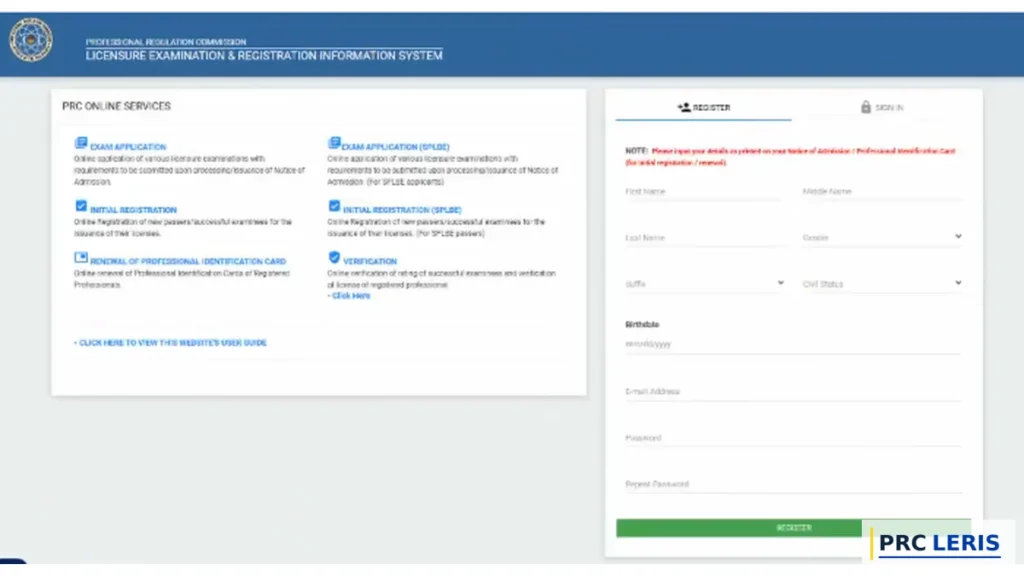
Click the REGISTER tab at the top. Enter the following, then click REGISTER:
- First Name, Middle Name, Last Name — exactly as printed on your PSA Birth Certificate, including any suffix (Jr., III). One wrong letter causes “record” errors later.
- Suffix — leave blank if none.
- Gender and Civil Status — select from dropdowns.
- Birthdate — mm/dd/yyyy format, match your PSA record exactly.
- Email Address — double-check for typos; the verification link goes here.
- Password — at least 6 characters with 1 letter, 1 number, and 1 special character. (Example: MyPRC@2026. No spaces.)
Step 4: Verify Your Email
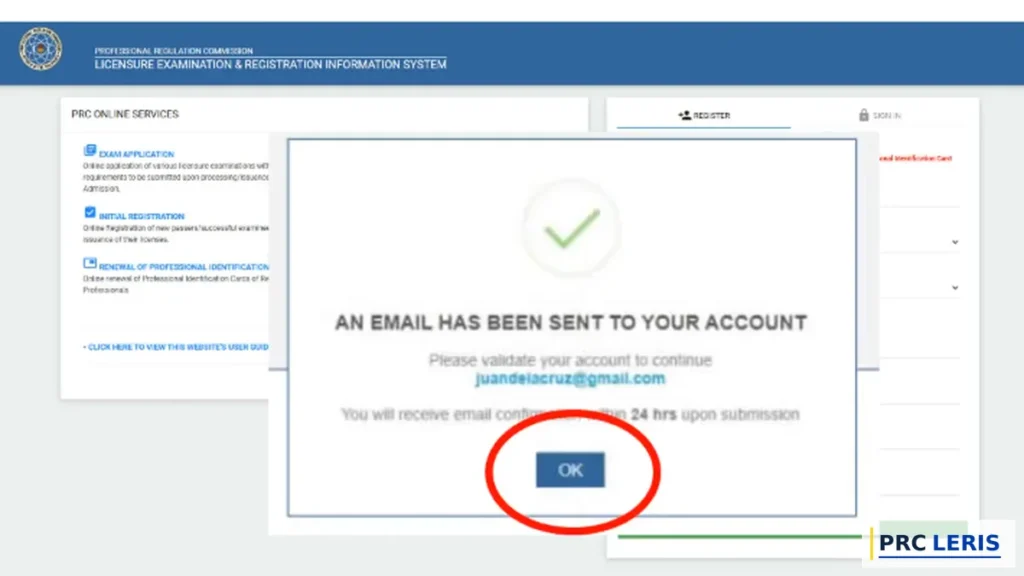
PRC instantly shows a confirmation: “AN EMAIL HAS BEEN SENT TO YOUR ACCOUNT.” Open your inbox, find the message from online.prc.gov.ph, and click the verification link or enter the OTP.
If it doesn’t arrive within 5 minutes, check spam and promotions. Expired link? Request a new one from the sign-in page. Do NOT create a second account — verify the first one.
Step 5: Sign In for the First Time
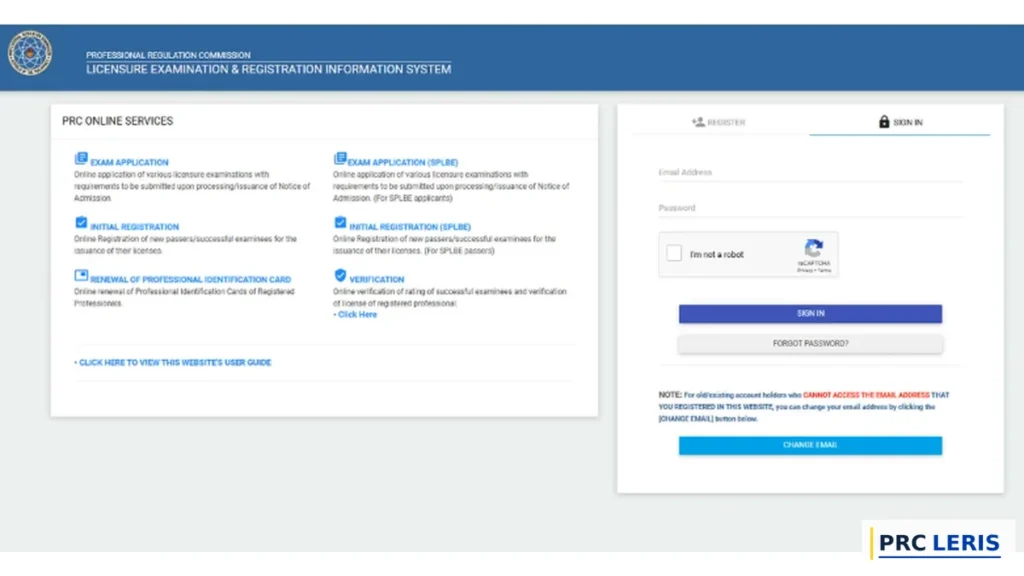
Return to online.prc.gov.ph, click the SIGN IN tab, enter your email and password, complete the CAPTCHA, and click SIGN IN. You’ll land on your new dashboard — but you’re not done yet.
Step 6: Head Straight to Your Profile
The account exists, but LERIS blocks every transaction until your profile reaches 100%. Complete it now, in the same sitting (next section).
How to Complete Your LERIS Profile to 100%
Step 1: Open the Profile Section
From your dashboard, click Profile in the left sidebar menu.
Step 2: Fill In Every Field of the LERIS Form
Complete all remaining details across three sections:
Personal Information & Contact Details: Citizenship, birth place, permanent address (house number to ZIP code), town/city/province, mobile number, telephone (optional), alternate email, and the judicial conviction question (select No unless applicable).
Family Background: Father’s name and citizenship, mother’s maiden name and citizenship.
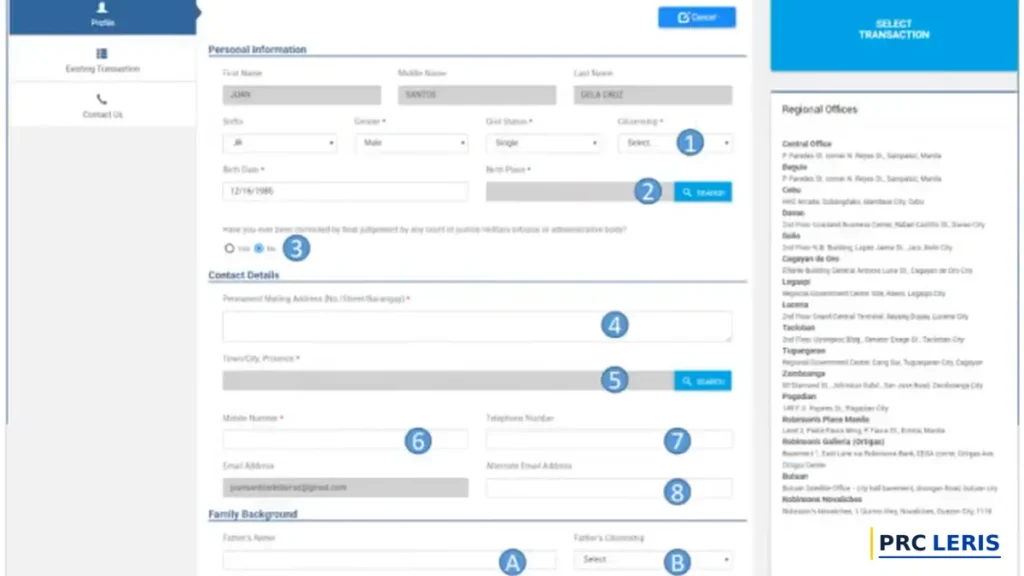
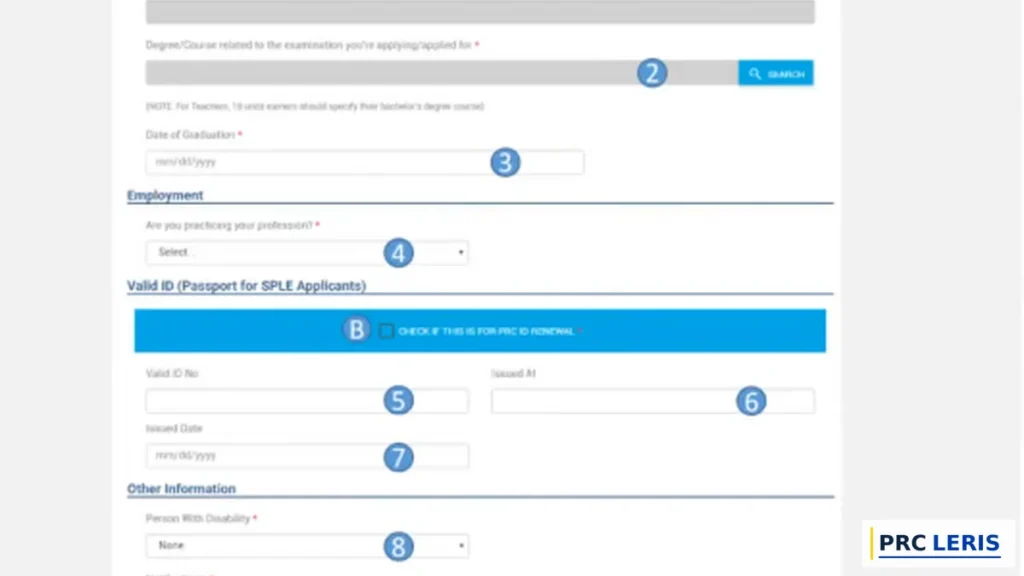
Education & Employment: Search and select your school, select your degree/course, input your graduation date. For employment, select whether you’re currently practicing. Then enter your valid ID details — ID number, where it was issued, and issue date. If this is for PRC ID renewal, check the blue checkbox marked “CHECK IF THIS IS FOR PRC ID RENEWAL.”
Other Information: Person with disability (select None unless applicable) and notification preferences. Then click SAVE INFORMATION and confirm.
Step 3: Upload Your 2×2 Photo
After saving your information, the system shows photo requirements. Read them carefully — this photo becomes your official PRC photo and appears on your PRC ID card.
- Click PROCEED after reading the photo requirements.
- Read the guidelines (2×2 size, plain white background, taken within 6 months, decent attire with collar).
- Review the “Application will NOT be processed if” rules — no eyeglasses, no shadows, ears visible.
- Click PROCEED to continue.
- Click Choose File and select your JPG photo.
- Use ZOOM IN / ZOOM OUT to fit your photo within the frame.
- Click UPLOAD IMAGE to submit.
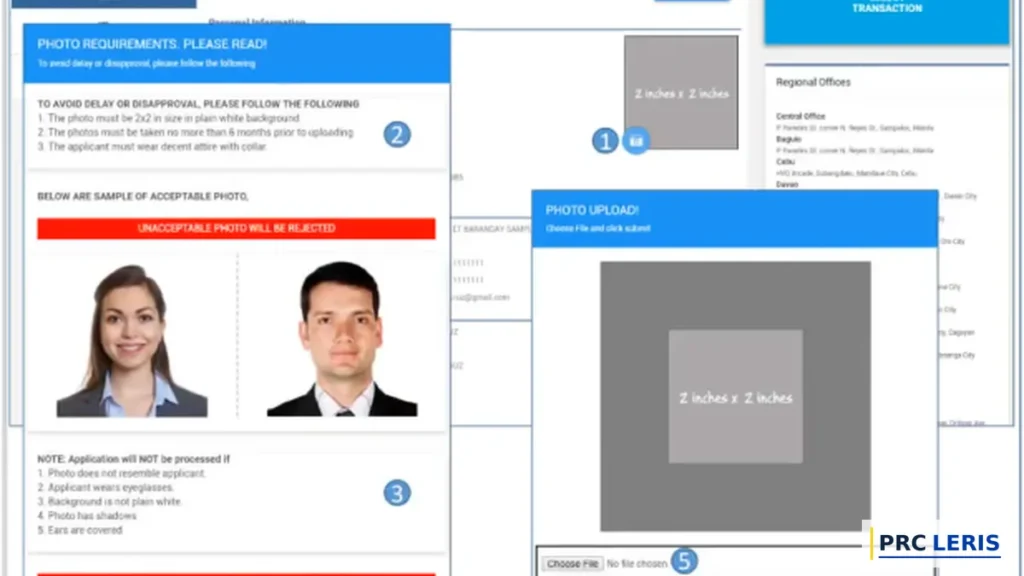
Why this matters: A non-compliant image that slips past the system can still be flagged by PRC staff on your appointment day — and that means delays or rejection.
Step 4: Save and Confirm 100% Completion
Check the completion indicator on your dashboard. Below 100% means a field is still empty — go back and fill it. At 100%, your account is fully active for any transaction: exam application, renewal, certifications, everything.
Registration Requirements at a Glance
| Requirement | Specification | Common Mistake to Avoid |
|---|---|---|
| Personal, permanent address | Using a school/work email you’ll lose | |
| Name | Exactly per PSA Birth Certificate | Dropping the middle name or suffix |
| Password | 6+ chars: 1 letter, 1 number, 1 special | Spaces, or reusing an old password |
| Photo | 2×2 JPG, <2MB, white background, collar | HEIC/PNG format, filters, casual attire |
| Valid ID | PSA, passport, license, UMID, etc. | ID name differing from PSA spelling |
| Browser | Updated Chrome or Edge | Old Safari/Firefox breaking the form |
So, the PSA-matched name and a permanent email are the two requirements that matter most — get those right and everything downstream works.
Common LERIS Registration Errors and Fixes
“Name Already Registered” Error
An account with your exact name and birthdate already exists — usually one you created years ago and forgot. Do not make another. Recover the original: run Forgot Password with your possible old emails, or contact [email protected] to trace and update the account.
“Email Already in Use” Error
That email is tied to an existing LERIS account — almost certainly yours. Go to the Sign In page and use Forgot Password to regain access instead of registering fresh.
Verification Email Not Arriving
Wait 5 minutes; check spam and promotions. Still nothing? Request a new verification email from the portal — and confirm you typed your address correctly at registration, because a typo sends the link into the void.
Photo Upload Failing
The file must be JPG and under 2MB. iPhone photos default to HEIC — convert them with any free online converter, then compress if needed.
How to Fill Up the Form Without “Record” Errors Later
Match every field to your PSA Birth Certificate: full middle name, exact suffix format, exact birthdate. LERIS cross-checks these against PRC records — mismatches surface as “No Record Found” or “Record Mismatched” errors when you transact. (Already seeing those errors? Our LERIS Login & Account Recovery guide covers the fix.)
Registration Page Not Loading
Clear your cache (Ctrl + Shift + Delete), switch to Chrome or Edge, or try the mirror portals online1.prc.gov.ph / online2.prc.gov.ph. Persistent outage = scheduled maintenance; check facebook.com/PRCphl.
Tips for a Smooth PRC Online Registration
Follow Your PSA Birth Certificate, Not Your Driver’s License
When documents disagree on spelling, PSA wins. It is the record PRC validates against.
Register Weeks Before Any Deadline
Account and profile issues take days to resolve through PRC. Deadline week is the worst time to discover a name mismatch.
Complete the Profile in One Sitting
Half-finished profiles left for weeks invite browser autofill errors and forgotten passwords. Register, verify, complete, upload — one session, 20 minutes.
Never Create Duplicate Accounts
One person, one account, for life. Duplicates split your exam and license records and require a manual PRC merge.
Write Down Your Credentials Now
Password manager, secure note, or paper in a drawer — anywhere reliable. Your next login might be three years away.
Take the Photo Seriously
White wall, collared shirt, straight face, no filters. Five minutes now saves an appointment-day rejection later.
Use Chrome or Edge
LERIS is built for Chromium browsers. Safari and old Firefox versions are the source of most “form not working” complaints.
Bookmark online.prc.gov.ph
Register today, bookmark today — and never touch a lookalike site from search results again.
PRC Contact Information
| Concern | Contact |
|---|---|
| Account & registration issues | [email protected] |
| General inquiries | [email protected] |
| Feedback form (CRMS) | crms.prc.gov.ph/feedbackform |
Official portal: online.prc.gov.ph
Frequently Asked Questions (FAQs)
How to create a LERIS account in PRC? Go to online.prc.gov.ph, click I AGREE on the terms, fill in your name, birthdate, email, and password, verify your email, then complete your profile to 100%.
How to register in PRC online? Registration happens only at online.prc.gov.ph — accept the terms, complete the sign-up form, and verify your email to activate the account.
How to sign up in PRC? Open online.prc.gov.ph, complete the registration form with PSA-matched details, and click REGISTER.
Is PRC LERIS registration free? Yes — creating the account costs nothing; fees apply only to actual transactions like exams and renewals.
What do I need to register on LERIS? A permanent personal email, a valid ID, a 2×2 JPG photo on a white background, your complete personal details, and an updated browser.
What valid ID is accepted for LERIS? PSA Birth Certificate, passport, driver’s license, UMID, SSS/GSIS, PhilHealth, Voter’s ID, or an existing PRC ID.
What are the LERIS photo requirements? 2×2, JPG, under 2MB, plain white background, collared attire, no filters or face-covering accessories.
What password does LERIS require? Minimum 6 characters including 1 letter, 1 number, and 1 special character — no spaces.
How long does LERIS registration take? About 5 minutes for the sign-up form and another 10–15 to complete your profile.
Can I register on LERIS using my phone? Yes — open Chrome on mobile and follow the same steps, though photo upload is easier on desktop.
Why does LERIS say my name is already registered? An account with your name and birthdate exists; recover it via Forgot Password or [email protected] instead of creating a new one.
Why does LERIS say my email is already in use? That address already has an account — sign in or reset the password rather than registering again.
Can I create two LERIS accounts? No — PRC prohibits duplicates; a second account splits your records and requires a manual merge.
Why is my verification email not arriving? Check spam and promotions after 5 minutes, then request a new link — and confirm the email was typed correctly.
How to fill up the PRC online registration form correctly? Copy every detail from your PSA Birth Certificate — full middle name, exact suffix, exact birthdate.
Do I need to complete my profile before applying? Yes — LERIS blocks all transactions until the profile shows 100% completion.
What is the LERIS application form? It’s generated after you file a specific transaction (exam, renewal); account registration itself has no printable form.
Which browser works best for LERIS registration? Updated Google Chrome or Microsoft Edge.
Can OFWs create a LERIS account from abroad? Yes — registration works from any country; only the appointment step requires presence in the Philippines or a representative.
What happens after my LERIS account reaches 100%? You can file any PRC transaction — exam application, initial registration, renewal, certifications, or authentication.
Paano mag-register sa LERIS? Pumunta sa online.prc.gov.ph, pindutin ang I AGREE, punan ang pangalan, birthdate, email, at password, i-verify ang email, tapos kumpletuhin ang profile hanggang 100%.
Ano ang kailangan para mag-sign up sa PRC online? Kailangan mo ng personal na email, valid ID, 2×2 na JPG photo na puting background, at updated na browser — lahat libre ang registration.
Final Thoughts
A LERIS account takes 20 minutes to set up properly — and setting it up properly is the entire game. Two details decide everything: a name that matches your PSA Birth Certificate letter-for-letter, and an email you will still control in ten years. Get those right, push the profile to 100% the same day, and every future PRC transaction becomes routine. From here, most people head straight to either filing a board exam application or renewing their license — both start from the dashboard you just built.
Register only at online.prc.gov.ph. No shortcuts, no third-party sites, no duplicate accounts.